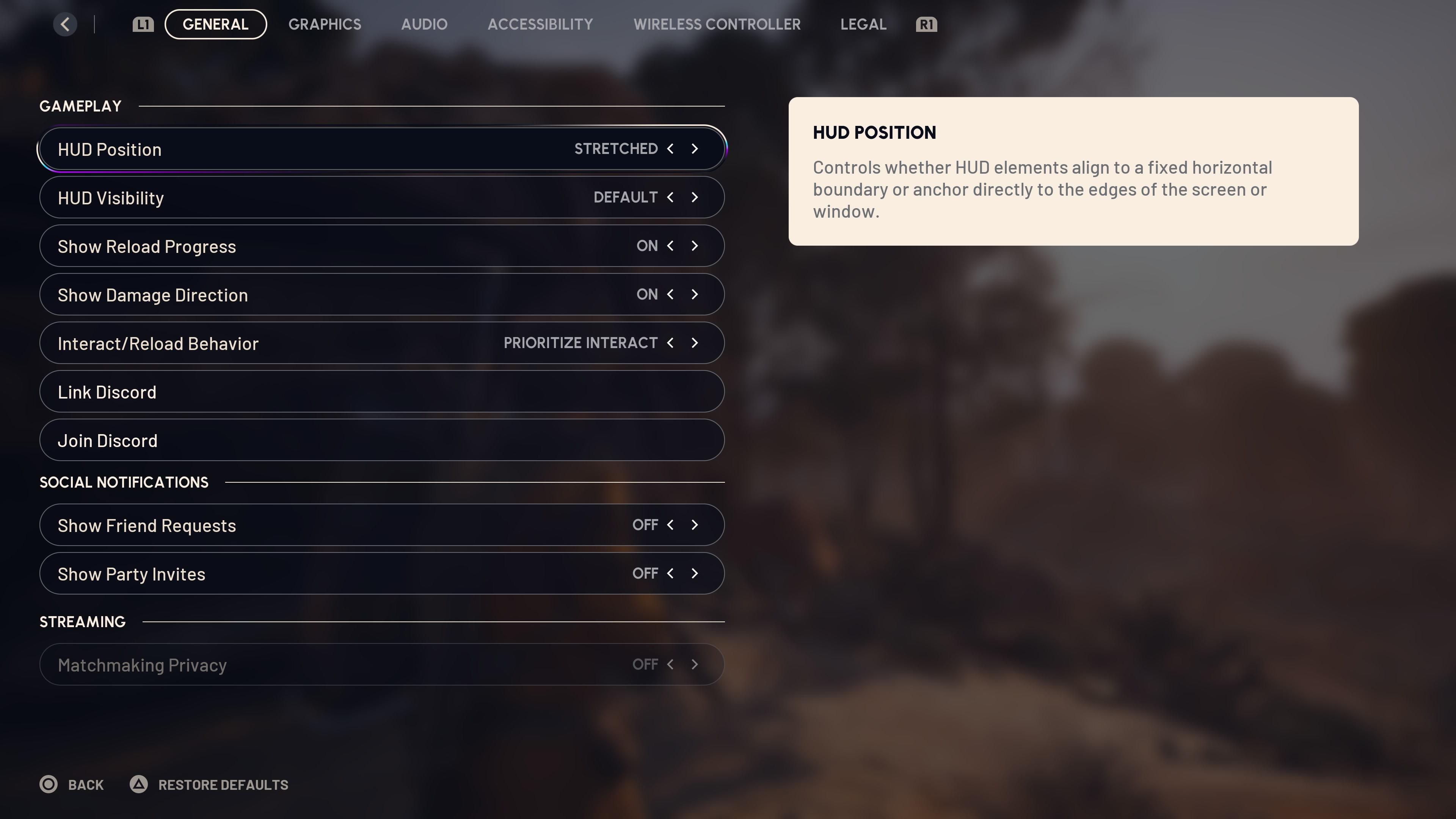
Game UI
More actions
The Game UI in ARC Raiders consists of a first-person view and five tabbed menus.
In-round UI
First-person view
HUD
Compass
By default, the compass bearing is shown at the top of the screen, in the center. Extraction Points and Raider Hatches will be shown when the Raider is heading towards them and comes within about 400m. Waypoints set in the Map will always be shown when the Raider is moving in their direction, however far away they are. Below the compass is a countdown clock showing the time remaining until the end of the round. It does not indicate how long a particular extraction point will be open - for this the Raider must refer to the Map.
Shields/health
Shield and health bars are shown by default in the bottom left-hand corner of the screen. If you are playing in a squad, bars for all squad members will be shown.
Weapons
The equipment panel (bottom right by default) shows the weapon currently in use along with ammunition remaining and the item equipped in the last accessed quick use slot.
Reticule
The aiming reticule, which appears when the Raider raises a weapon, can be modified in Settings. For most weapons it is a crosshair by default. For shotguns, it will be a circle showing damage spread.
Wheel menus
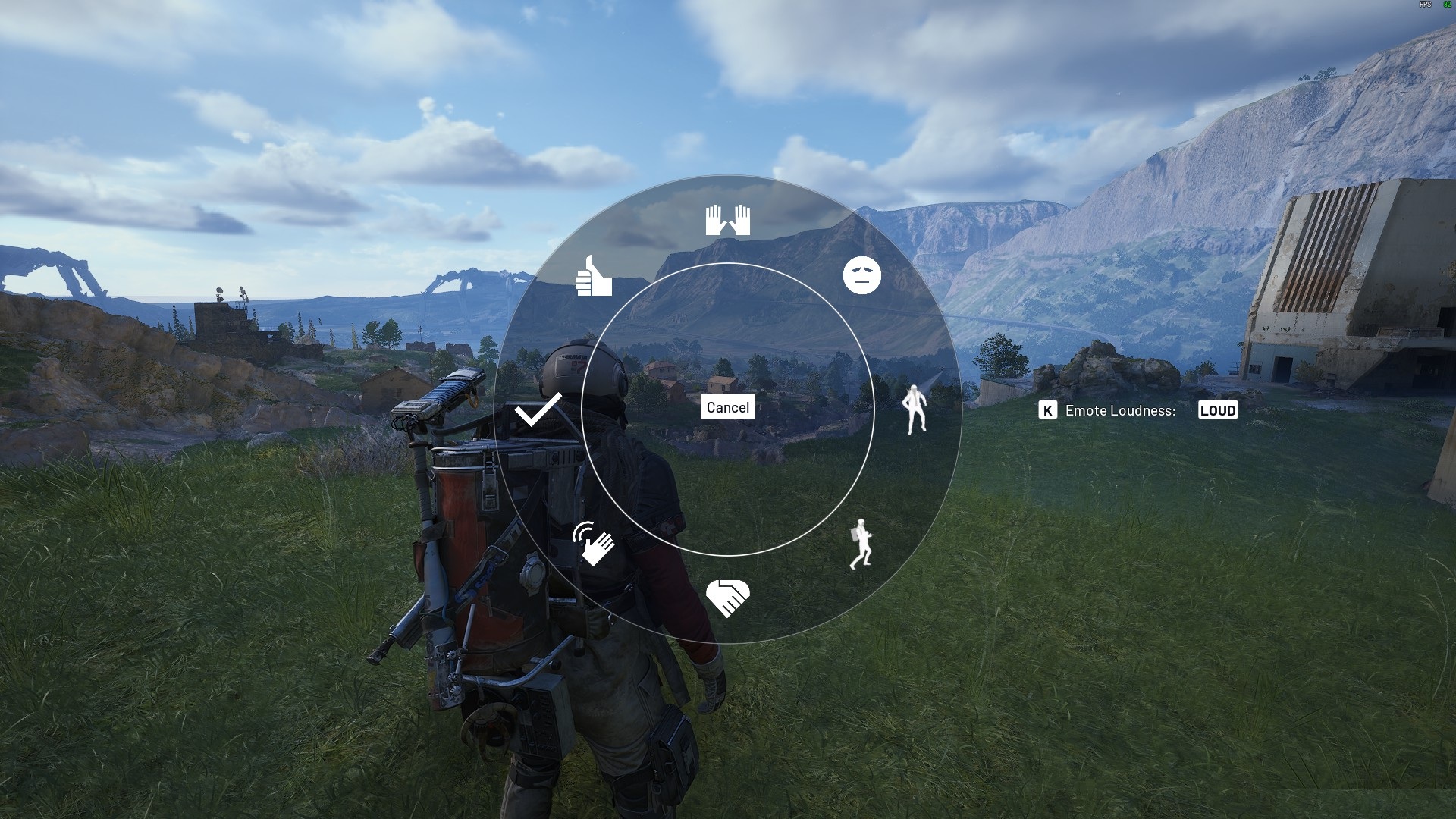
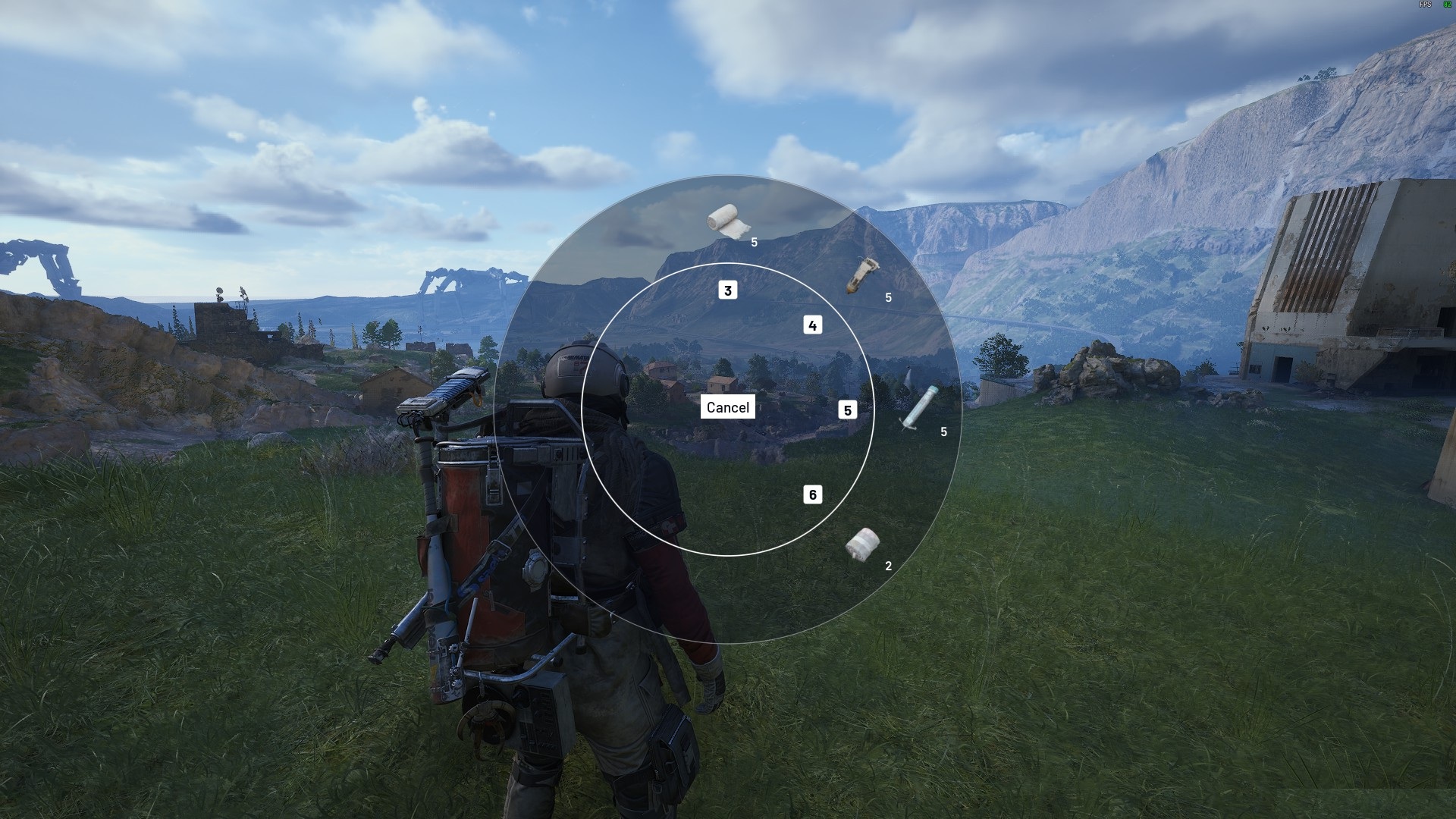
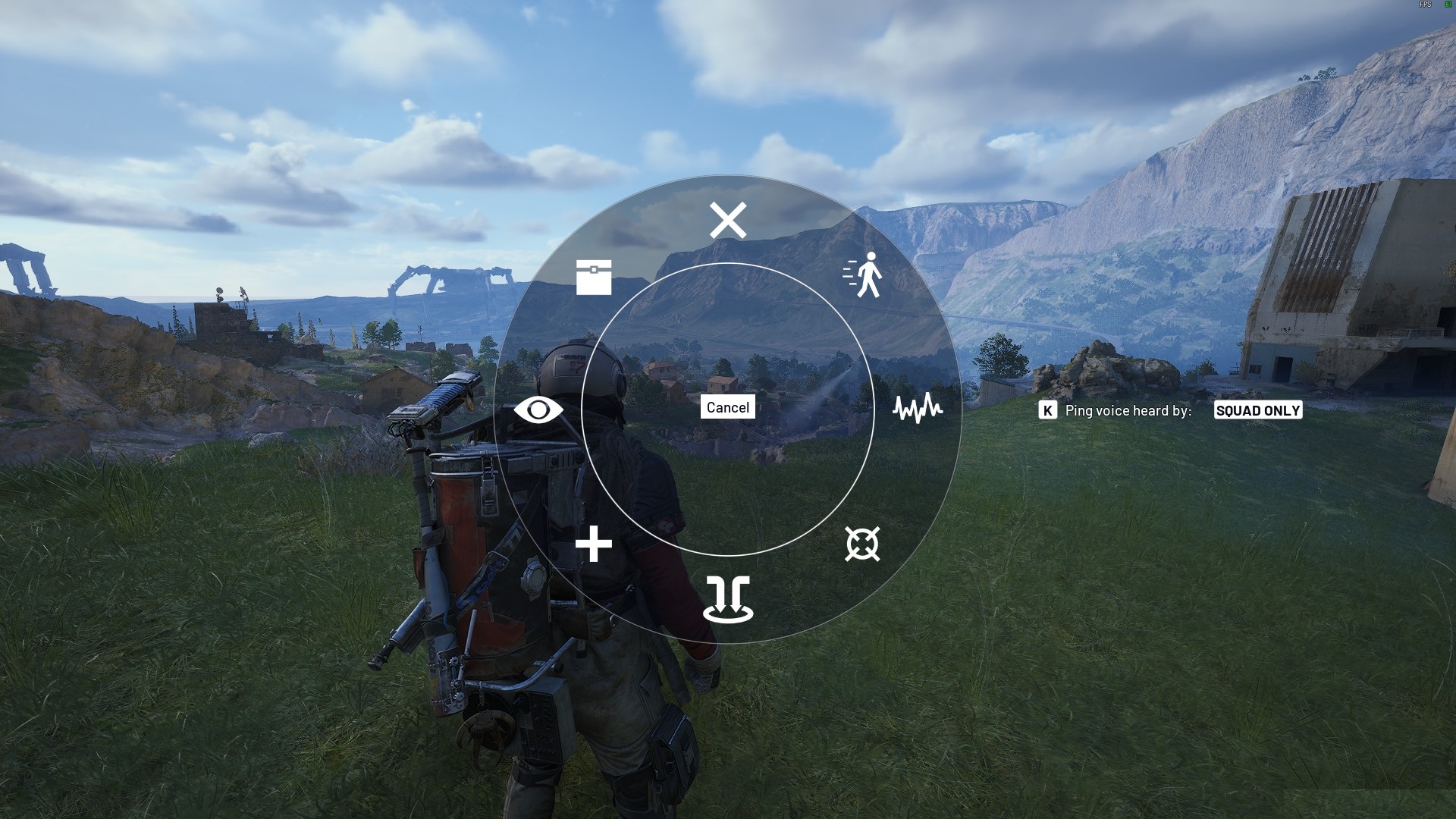
The first-person view includes three radial menus.
 |
The Emoji Wheel selects phrases and gestures for use in interacting with other Raiders. Emotes in the wheel can be selected in Raider Customization. They cannot be changed in-game. | ||
|---|---|---|---|
 |
The Quick Use Wheel allows you to select items from quick use slots. If a Raider is equipped with an Augment that provides extra slots (for example the Tactical Mk. 2) some items may not have shortcut keys, but they will all appear on the wheel. | ||
 |
The Ping Wheel allows you to communicate with your team / or with Raiders (your team included); it depends on your parameters. |
Tabbed menu
Alongside the first-person view, there are five tabbed menus.
Inventory |
||
|---|---|---|
.jpg) |
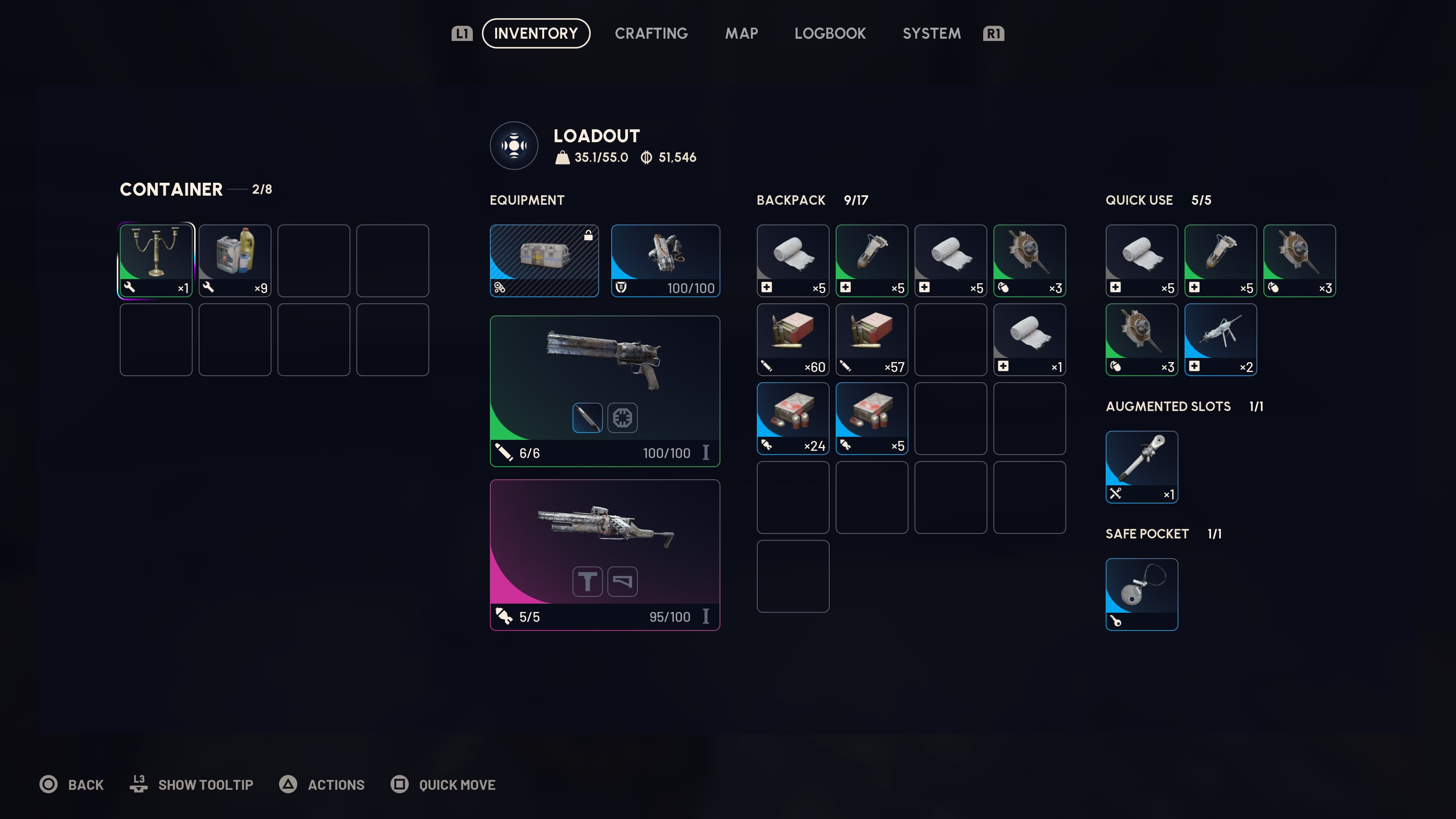
The inventory appears automatically when searching a container, with the loot available shown on the left; otherwise it is accessed from a tab. Actions include: | |
Crafting |
||
.jpg) |
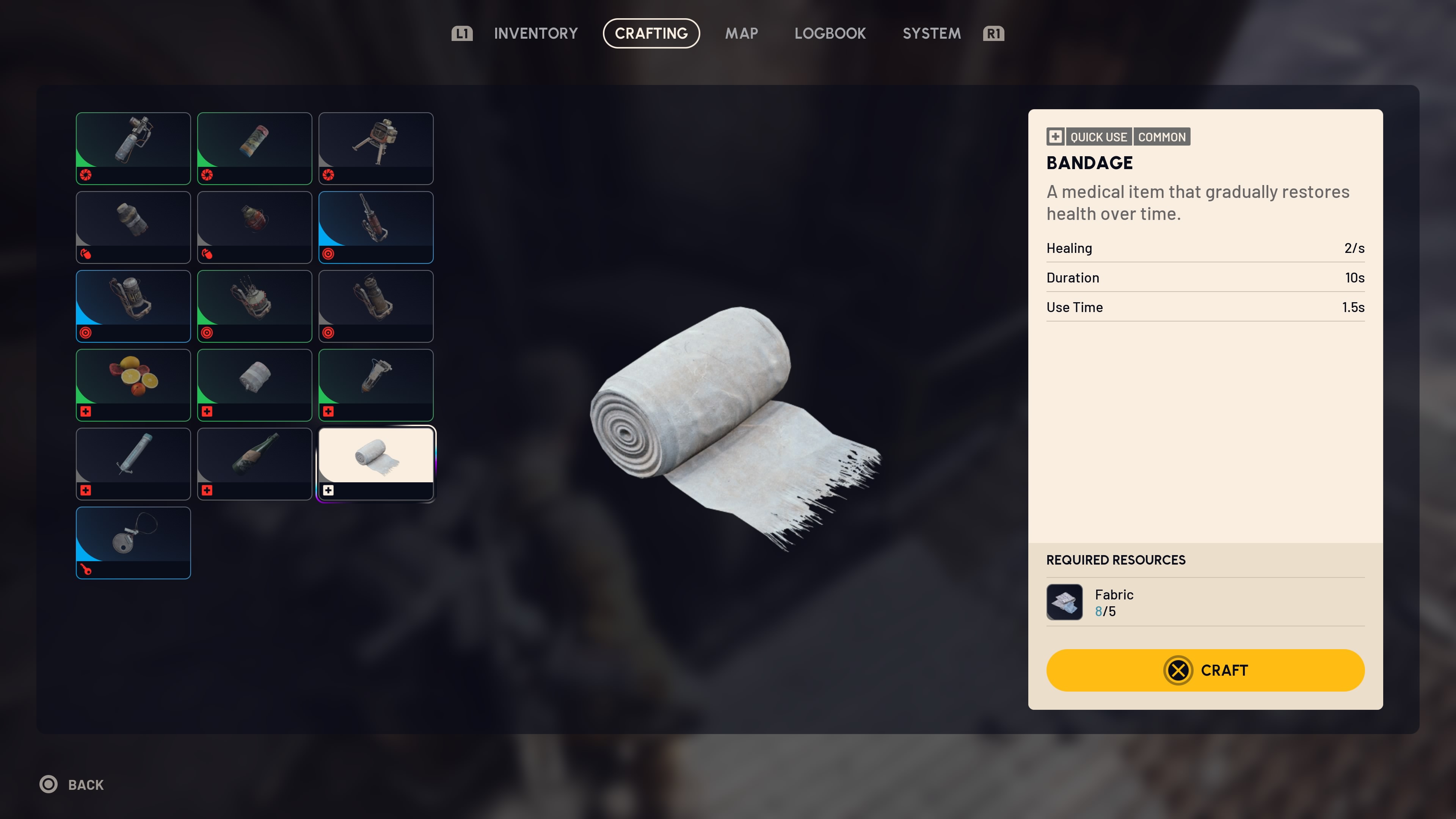
In-round crafting is unlocked in the Survival branch of the Skill Tree. A new account needs to be at least Level 2 to access it (Raiders are awarded a skill point per level). Raiders who have taken the expedition may be able to unlock field crafting at Level 0 if they have gained enough points. The Traveling Tinkerer skill (also in the Survival branch of the tree) unlocks additional items to craft.
To craft an item in-game, a Raider must have the necessary materials available in their loot pockets - materials in the stash at Speranza cannot be used. Blueprints are not required. | |
Map |
||
 |
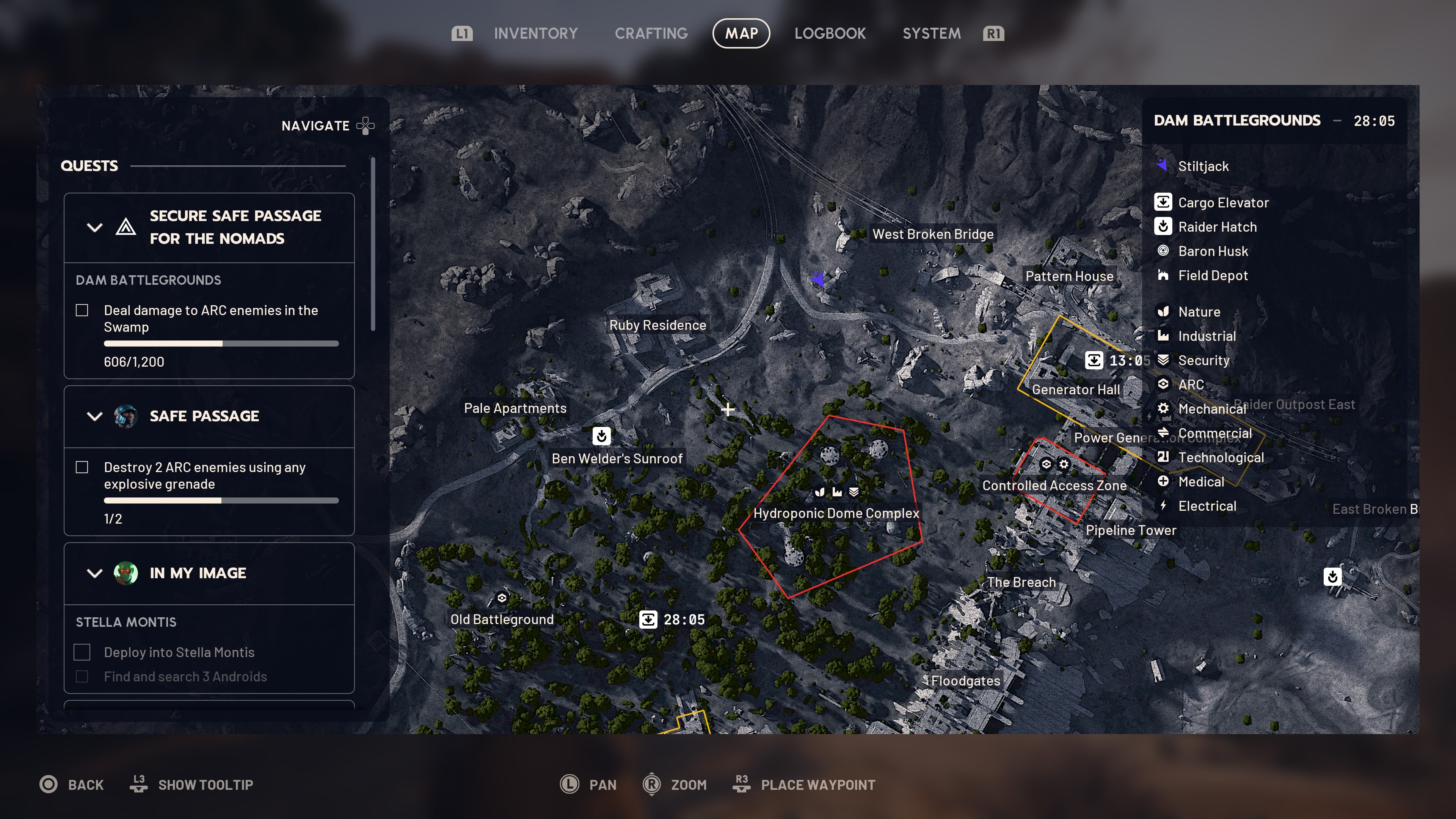
The map is the same as the one in Speranza, with three additional active elements:
The Raider's position is shown by a colored arrow pointing in the direction of travel. Each extraction point will be marked with a countdown clock showing how much longer it will remain open. The extraction point symbol will change color when there are only five minutes remaining and be greyed out when the lift closes. Waypoints set by the Raider on the Map will be shown in color. | |
Logbook |
||
 |
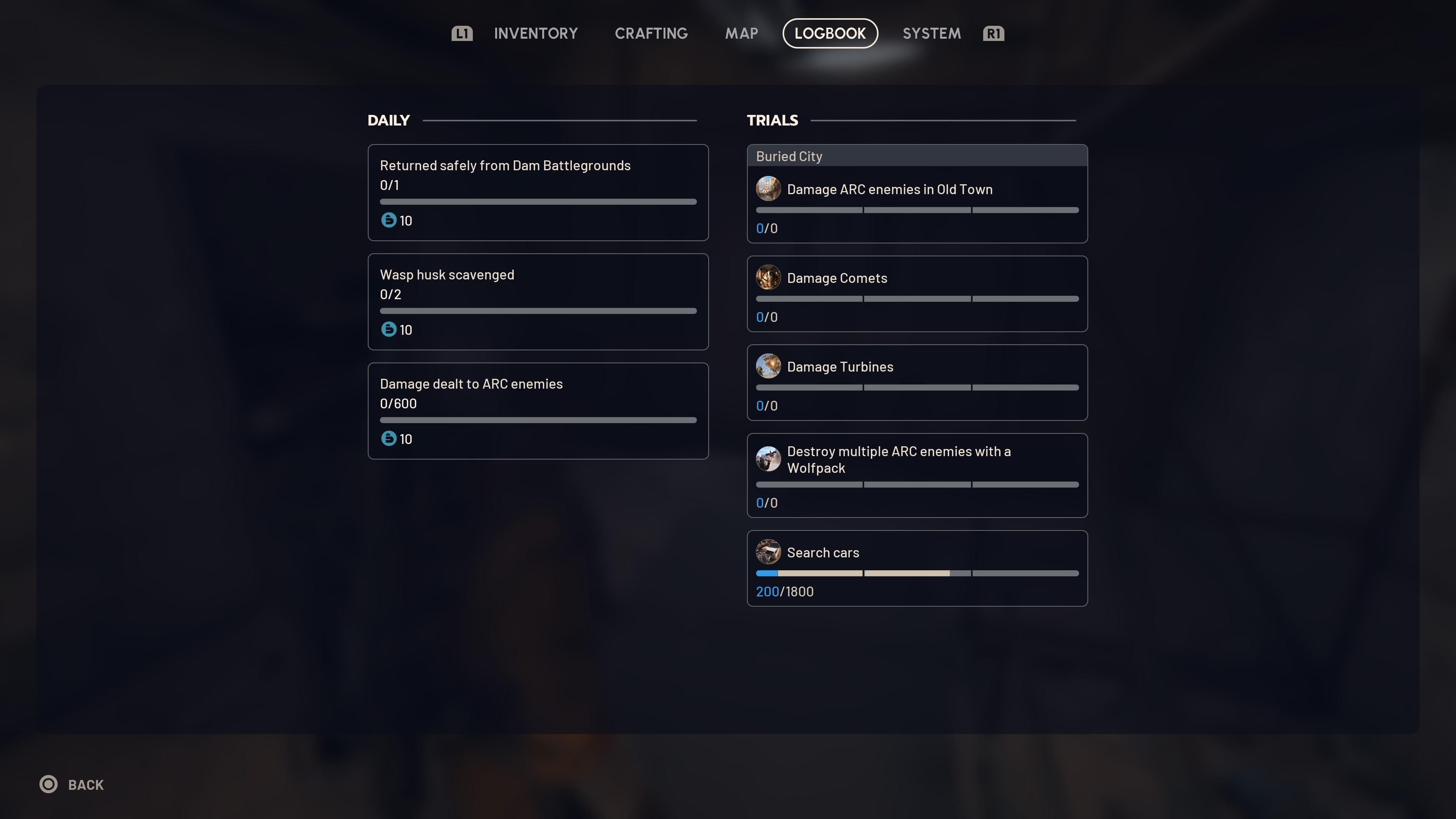
Two panels show progress in Daily objectives and Trials objectives. |
Settings
 |
The settings menu allows the user to customize keybinds, graphics, audio, and other settings while Topside (in-game), but not while downed. |
|---|